Showing posts with label CAD. Show all posts

Tuesday, 23 June 2026

SOLIDWORKS Mastery Pack – 11 Courses in 1

SOLIDWORKS Mastery Pack – 11 Courses in 1

Master SOLIDWORKS through 3 complete video courses and 8 project-based eBooks. Go from absolute beginner to industry professional.

Enroll Now
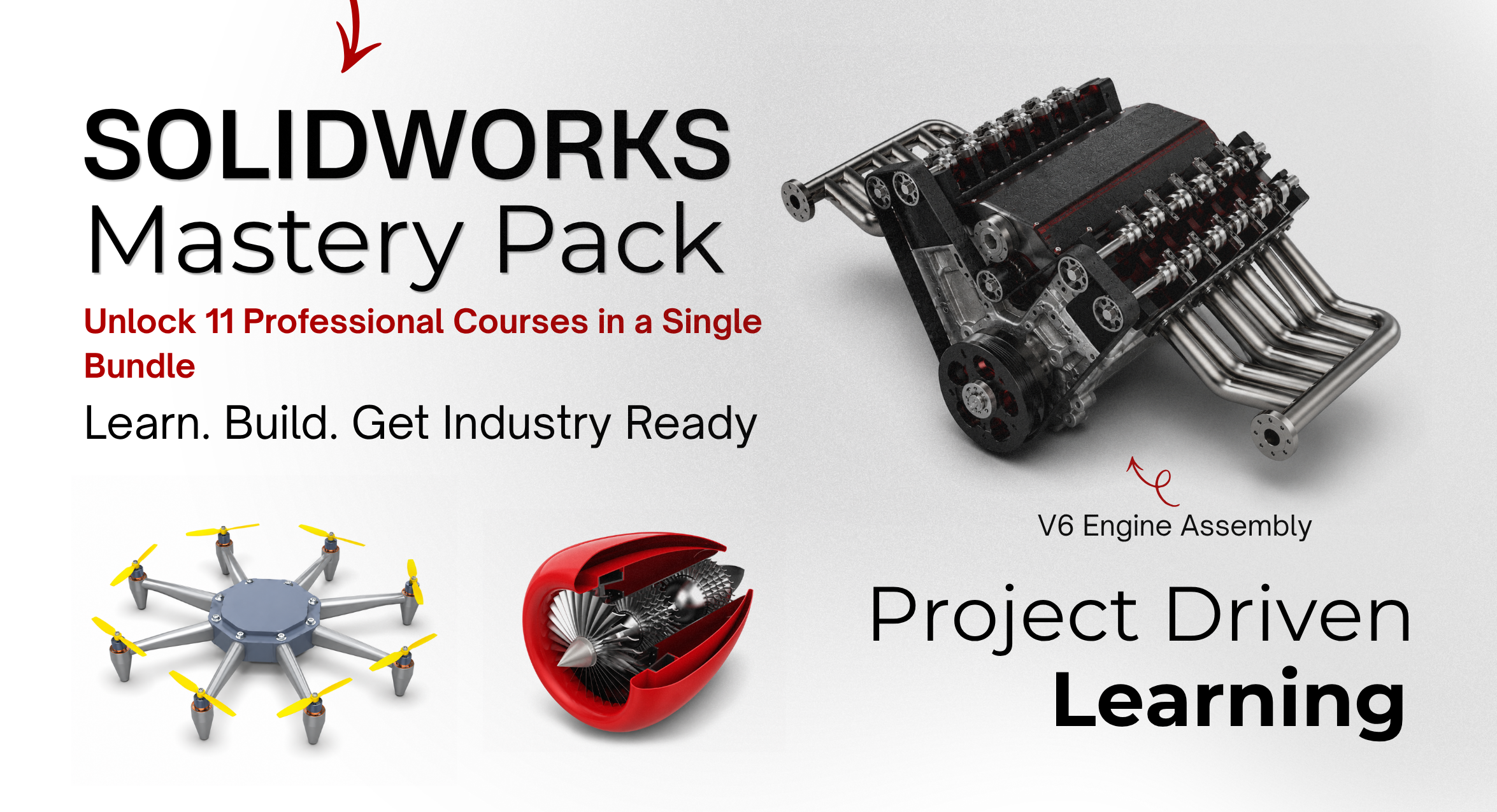
SOLIDWORKS Mastery Pack Hero Bundle

Featured Engineering Projects

Master complex mechanical systems through comprehensive engineering projects. Each project includes a dedicated eBook, detailed modeling workflow, project assets, and practical engineering insights designed to build real-world CAD expertise.
⚙️

Learn through complete engineering systems rather than isolated parts.

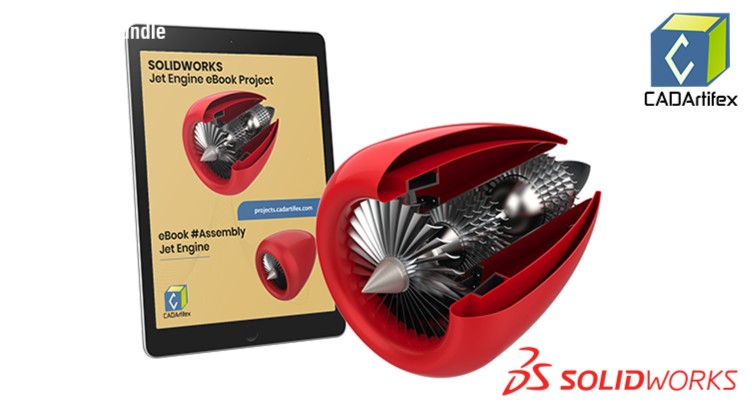
Jet Engine Project Blueprint Visual Engineering Project

Jet Engine Project

Explore structural aerodynamic configurations, advanced surface framing, and high-fidelity blade layouts.

Learn More
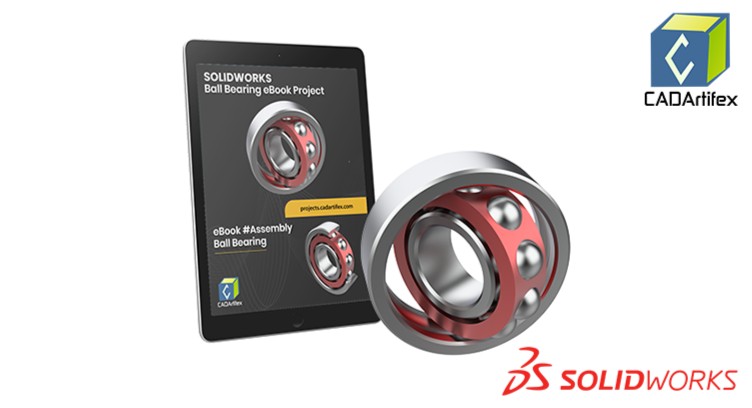
Ball Bearing Assembly CAD Model Engineering Project

Ball Bearing Assembly

Master micro tolerances, absolute rotational mating logic, and critical axial load configuration layouts.

Learn More
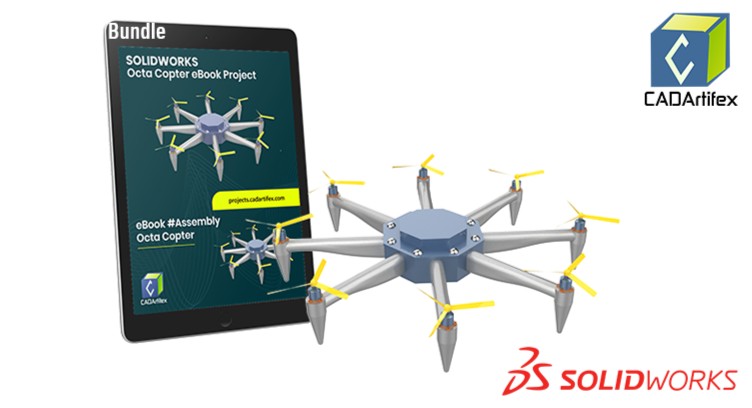
Octa-Copter Drone Design Frame Engineering Project

Octa-Copter Drone

Integrate functional computing enclosures with structural consumer hardware rigging grids.

Learn More
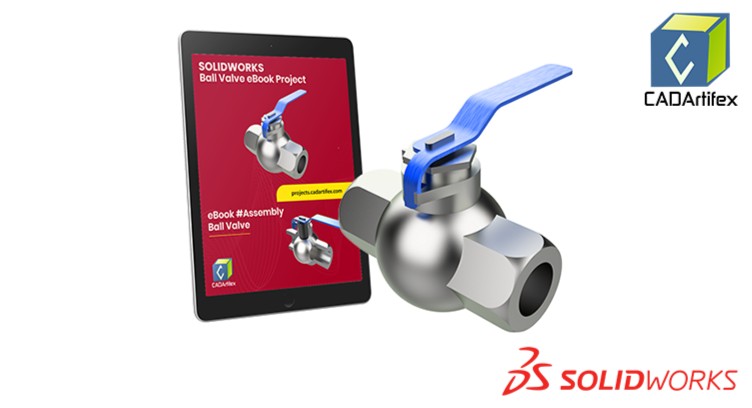
Ball Valve Mechanism Engineering Render Engineering Project

Ball Valve Mechanism

Model precise dynamic seals, pressure-containing castings, and parameter-driven fluid control linkages.

Learn More
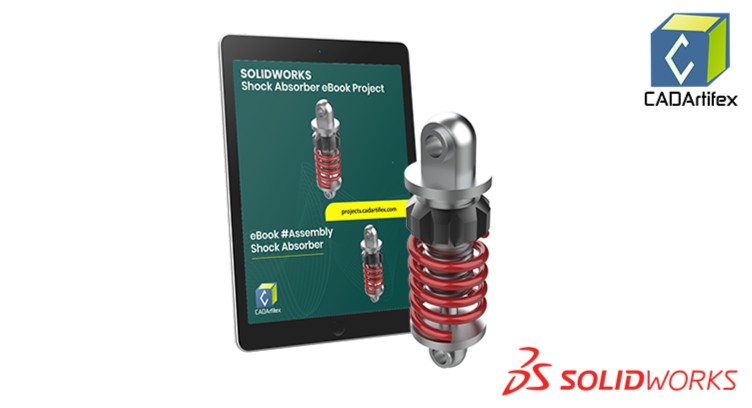
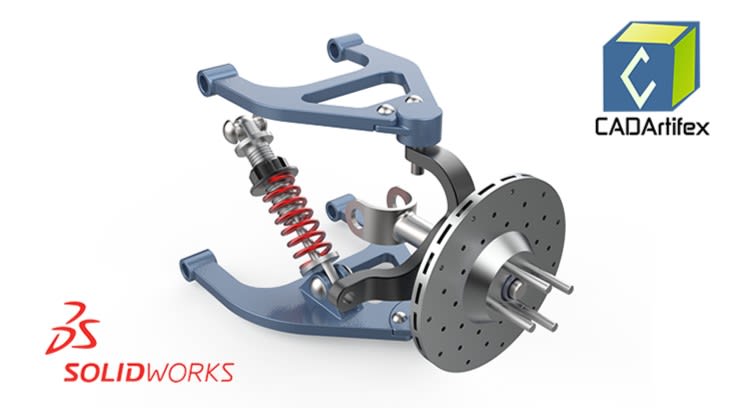
Shock Absorber System Hardware Dynamic Assembly Engineering Project

Shock Absorber System

Configure advanced variable helix springs, oil dampening reservoirs, and kinetic motion loops.

Learn More
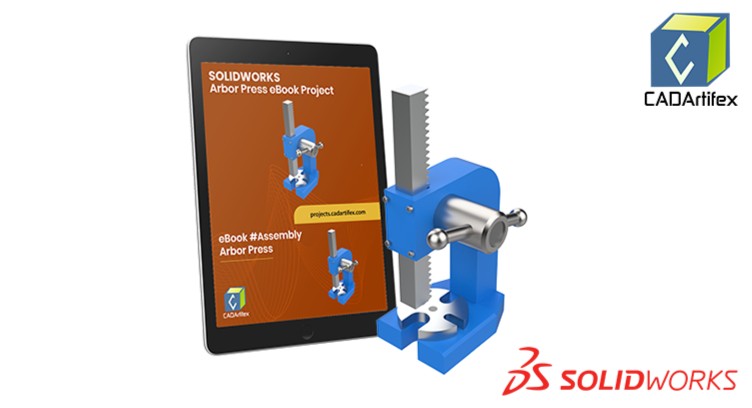
Arbor Press Model Shop Tool Layout Engineering Project

Arbor Press Model

Develop heavy-duty shop manufacturing assets highlighting classic spur gear interaction profiles.

Learn More

Product Design eBook Bundles

Accelerate your SOLIDWORKS skills with structured project collections. Gain access to 25+ project-based eBooks covering real-world consumer products, mechanical components, assemblies, and industrial designs.
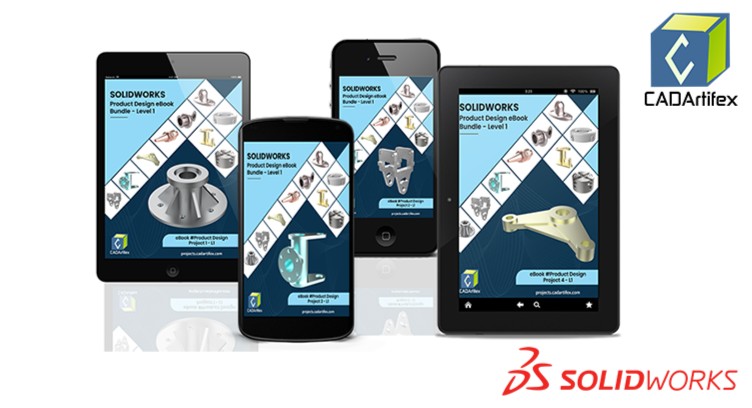
Product Design eBook Bundle Level 1 Cover
10+ Design Projects

Product Design eBook Bundle – Level 1

Build a strong foundation through guided product design tutorials covering a wide range of practical products and modeling techniques.

  • ✔ 10+ Product Design eBooks
  • ✔ Beginner Friendly
  • ✔ Real-World Products
  • ✔ Lifetime Access
Explore Level 1
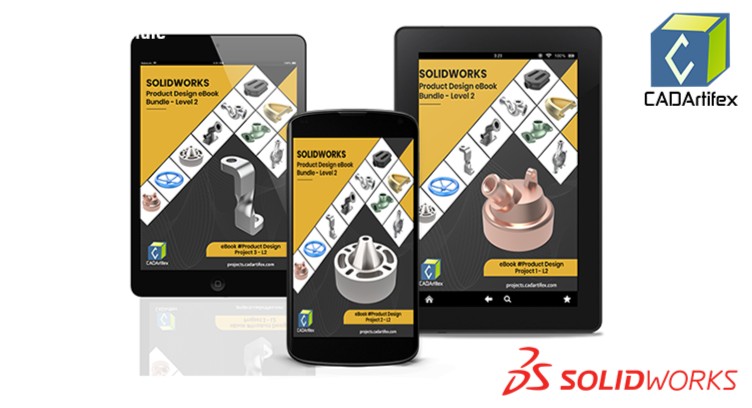
Product Design eBook Bundle Level 2 Cover
15+ Advanced Projects

Product Design eBook Bundle – Level 2

Advance your expertise through more challenging projects featuring complex parts, assemblies, and professional design workflows.

  • ✔ 15+ Product Design eBooks
  • ✔ Advanced Modeling
  • ✔ Complex Assemblies
  • ✔ Lifetime Access
Explore Level 2
25+ eBooks Included

Access a growing collection of 25+ product design tutorials and develop practical SOLIDWORKS skills through project-based learning.

Become Job-Ready with SOLIDWORKS

Gain access to real-world projects, full assemblies, engineering drawings, and structural manufacturing workflows.

Get Instant Access
© 2026 CADArtifex LLC. All rights reserved.

Monday, 8 September 2025

Must-Know Onshape Tricks for Faster 3D ModelingπŸš€


 Welcome to today’s video! πŸŽ‰

In this tutorial, you’ll learn 6 powerful Onshape tips that will save you hours of work and supercharge your 3D modeling workflow. Whether you’re a beginner or designing complex parts, these shortcuts and tricks will make your life much easier. What you’ll learn in this video: ✅ Tip 1 – ‘S’ Shortcut: Access your favorite sketch tools instantly. ✅ Tip 2 – Feature Search: Find any tool like Extrude, Loft, or Fillet in seconds. ✅ Tip 3 – Keyboard Views: Snap to front, right, top, or isometric view with a single tap. ✅ Tip 4 – Zoom to Selection (Shift + Z): Focus on any face, edge, or part instantly. ✅ Tip 5 – Toggle Planes (P key): Hide or show all default planes in one click. ✅ Tip 6 – Copy Documents: Duplicate designs or create versions safely to experiment. πŸ’‘ These tips will save you time, declutter your workspace, and make navigating Onshape faster than ever! Don’t forget to like, share, and subscribe for more Onshape tricks and CAD tutorials! #onshape #cadtips #3dmodelingsoftware #OnshapeShortcuts #engineeringdesign #cadtutorials #ProductivityTips #3DDesign #DesignSoftware #CADTutorial #EngineeringHacks #MechanicalDesign #DesignWorkflow#OnshapeHacks 

For more info. visit www.cadartifex.com

Configurations in SolidWorks - Stop Rebuilding the Parts & Use Configuration Instead


 In this video, we’ll dive into SolidWorks Configurations, one of the most powerful features for creating multiple versions of your parts and assemblies—without starting from scratch!

Whether you're designing product variants, managing size changes, or simplifying your workflow, configurations can save you time and reduce errors. ✅ What You'll Learn: What configurations are and why they matter How to create and manage configurations in parts and assemblies Best practices and tips for efficient use Real-world examples for design variation πŸ“Œ Perfect for beginners to intermediate SolidWorks users looking to improve their design process and CAD efficiency. visit: www.cadartifex.com

Speed Up SolidWorks with Custom Mouse Gestures!


 Supercharge Your SolidWorks Workflow with Custom Mouse Gestures!

Tired of digging through menus in SolidWorks? Want to work faster and smarter? In this video, I’ll show you how to customize mouse gestures in SolidWorks to speed up your design process and make your workflow more efficient than ever. Whether you’re a student, engineer, or professional CAD designer, mouse gestures can drastically improve how you interact with the software. Once you set them up, you’ll wonder how you ever worked without them! What You’ll Learn: πŸ”Ή What mouse gestures are and how they work in SolidWorks πŸ”Ή How to customize them for sketches, parts, assemblies, and drawings Why Use Mouse Gestures? ✅ Access your favorite tools instantly ✅ Reduce clicks and navigation time ✅ Create a personalized workspace tailored to your design style πŸ’¬ Got questions? Drop them in the comments! πŸ‘ Like the video if it helped you πŸ”” Subscribe for weekly SolidWorks tips, tutorials & workflow hacks

For more info. visit www.cadartifex.com


How to Create & Wrap 3D Text in FreeCAD (Step-by-Step)


In this step-by-step FreeCAD tutorial, you’ll learn how to create, extrude, and wrap text on 3D models. We’ll start by adding text to a flat surface, then extrude it in the Part workbench, and finally project text onto a curved face using the Curve workbench. ✨ What you’ll learn in this video: Adding and positioning text with the Draft workbench Extruding text in the Part workbench Applying colors and appearances to text Wrapping text on curved surfaces using the Curve workbench This tutorial is perfect for beginners who want to make their FreeCAD models more professional with custom 3D text. πŸ”” Don’t forget to Like, Share, and Subscribe for more FreeCAD tutorials!

For more info. visit: www.cadartifex.com

Model the Archimedes Spiral Wind Turbine in FUSION 360 - For Beginners & Advanced Users!


Learn to Create an Archimedes Spiral Wind Turbine in Fusion 360! In this tutorial, we’ll design a spiral-shaped wind turbine step by step. Unlike traditional propeller turbines, the Archimedes Spiral Turbine is compact, quiet, and efficient, even at low wind speeds. Features Used: Surface Loft Thicken Revolve Circular Pattern πŸ”Ή What you’ll learn in this video: ✅ How to model the spiral turbine blades in Fusion 360 ✅ Applying design parameters for accuracy ✅ Tips for making your design more realistic and functional This project is a great way to explore renewable energy concepts while improving your CAD modeling skills. for more info. visit, www.cadartifex.com

Monday, 18 August 2025

STOP Making Gears the Hard Way! – Create SPUR, BEVEL or ANY GEAR under 4 Minutes!

 STOP Making Gears the Hard Way! – Create SPUR, BEVEL or ANY GEAR under 4 Minutes!


Fusion 360 Trick Every Designer Must Know Facing difficulties while creating gear ? this video is for you , you’ll learn how to create spur, bevel, helical, and custom gears in Fusion 360 without complex calculations. We’ll cover: ✅ Creating standard and custom gears in minutes ✅ Using Fusion’s built-in gear tools and add-ins ✅ Applying parameters for accurate gear design ✅ Exploring extra gear options from the Fusion App Store Whether you’re a beginner or experienced designer, this method will save you time, effort, and frustration in your mechanical projects. πŸ’¬ Have questions or want to learn more Fusion 360 tricks? Drop a comment below! πŸ“Œ Like, share, and subscribe for more CAD tips, tricks, and mechanical design tutorials.
#fusion360 #geardesign #cadtutorial #mechanicaldesign #spurgear #bevelgear #helicalgear www.cadartifex.com

Saturday, 5 September 2015

General Concept for Angle of Projection

Engineering drawings follows two type of angle of projection: First angle of projection and Third angle of projection. In first angle of projection, object is assumed to be kept in the first quadrant, see Figure 1 and viewer viewing the object from the direction shown in Figure 1. As the object is kept in the first quadrant, its views projections are on the planes as shown in Figure 1. Now, on unfolding the planes of projections, the front view appears at the upper side and the top views appears at the bottom side in a drawing. Also, the right side view appears at the left and left side view appears at right side of the front view, see Figure 2. 

Drawing Spline driven by mathematical equations using the Equation Driven Curve tool of SOLIDWORKS

You can create spline driven by two type of mathematical equations: Explicit and Parametric by using the Equation Driven Curve tool of SOLIDWORKS.

Procedure to Draw  mathematical equations driven Spline by using the Explicit equation type
1. Invoke the Equation Driven Curve PropertyManager by clicking on the Equation Driven Curve tool in the Spline flyout.

2. Make sure that the Explicit radio button is selected in the Equation Type rollout of the Equation Driven Curve PropertyManager.
3. Enter the equation for Y as the function of x in the Yx field of the Parameters rollout. For example, enter the equation 2* sin(x)^12 in the Yx field.

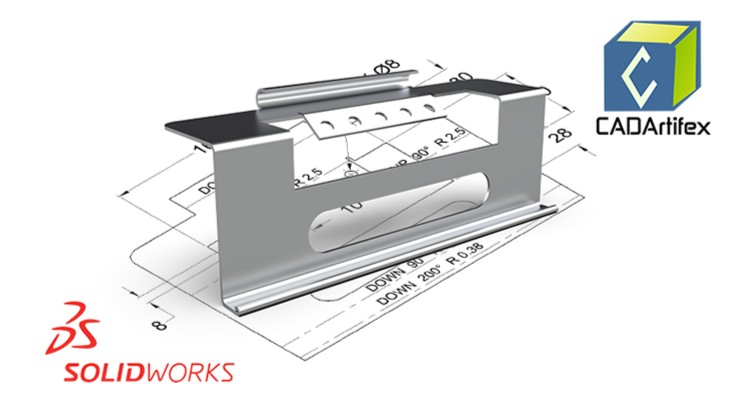
SOLIDWORKS Sheet Metal Bend Not Working? 7 Common Causes & Fixes

Working with sheet metal in SOLIDWORKS can make mechanical design much faster—but sheet metal bends don't always behave as expected...